Just 4 Kicks manual
Quick start guide
Welcome to the instant kick laboratory. This quick start guide will show you how to get the exact sound you need for your bass drum, instantly.
To use the full potential of the J4K plugin, please log in first.
Prompt tab
Here, you can create the core sound for your kick drum. Specify the genre, set parameters for your desired sound, and hit the GENERATE button. Audition generated sounds by clicking on the spheres, playing MIDI notes, or using your left/right arrow keys. Don’t like the results? Hit GENERATE again!
NOTE – the base note for MIDI playback is C1. See the SETTINGS section for more info.
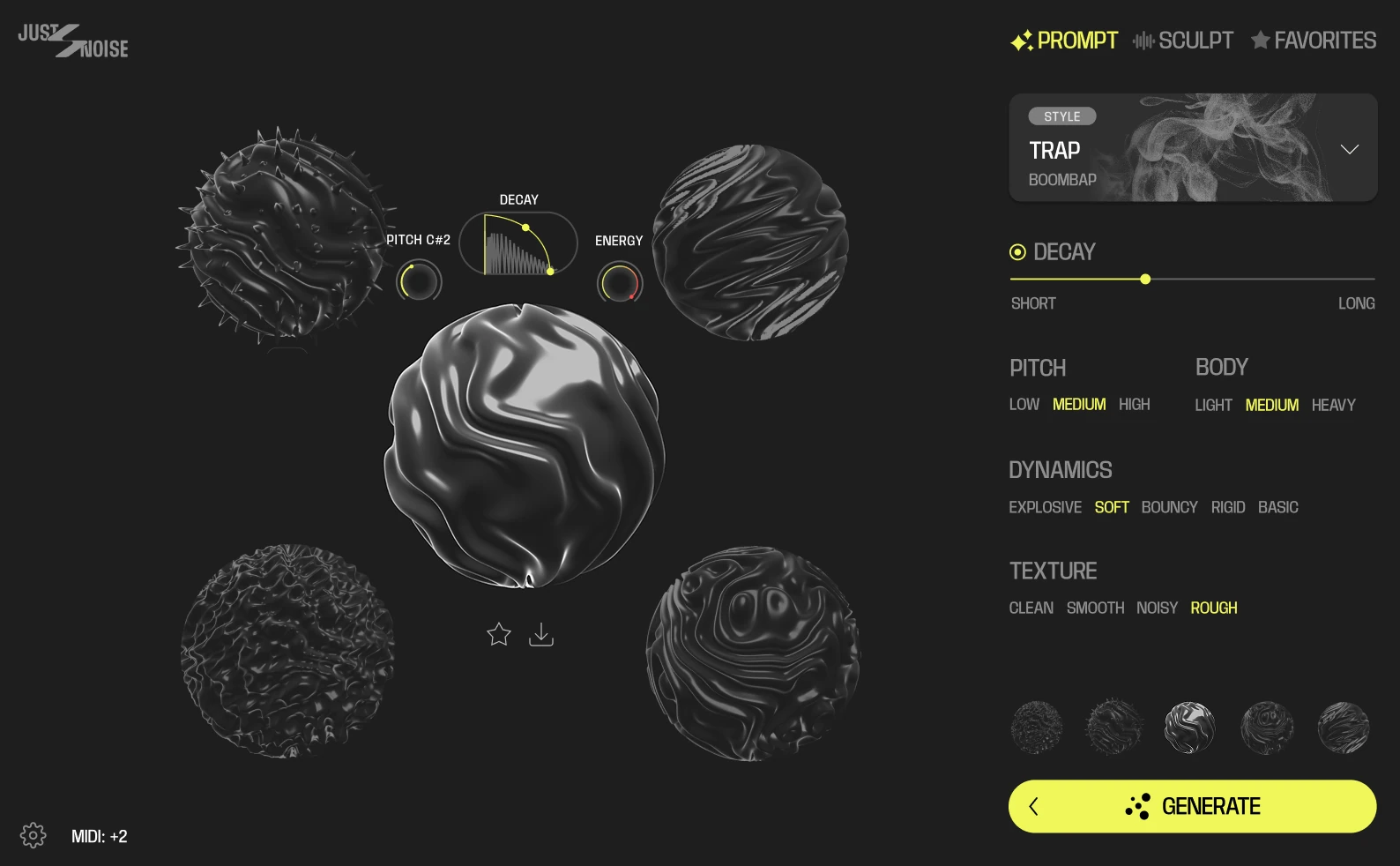
Instantly set Decay, Pitch and Loudness here. A high Energy setting also adds saturation.
Select genre and sub-genre from the drop-down list
Preview samples by clicking on spheres
Add to favorites or simply download your sample
Press < to return to the previous generation results
Quick sample preview
Instantly set Decay, Pitch and Loudness here. A high Energy setting also adds saturation.
Select genre and sub-genre from the drop-down list
Preview samples by clicking on spheres
Add to favorites or simply download your sample
Press < to return to the previous generation results
Quick sample preview
Sculpt
In the SCULPT tab, you can customize your kick and put on some final touches to shape your sound with in-house DSP effects.
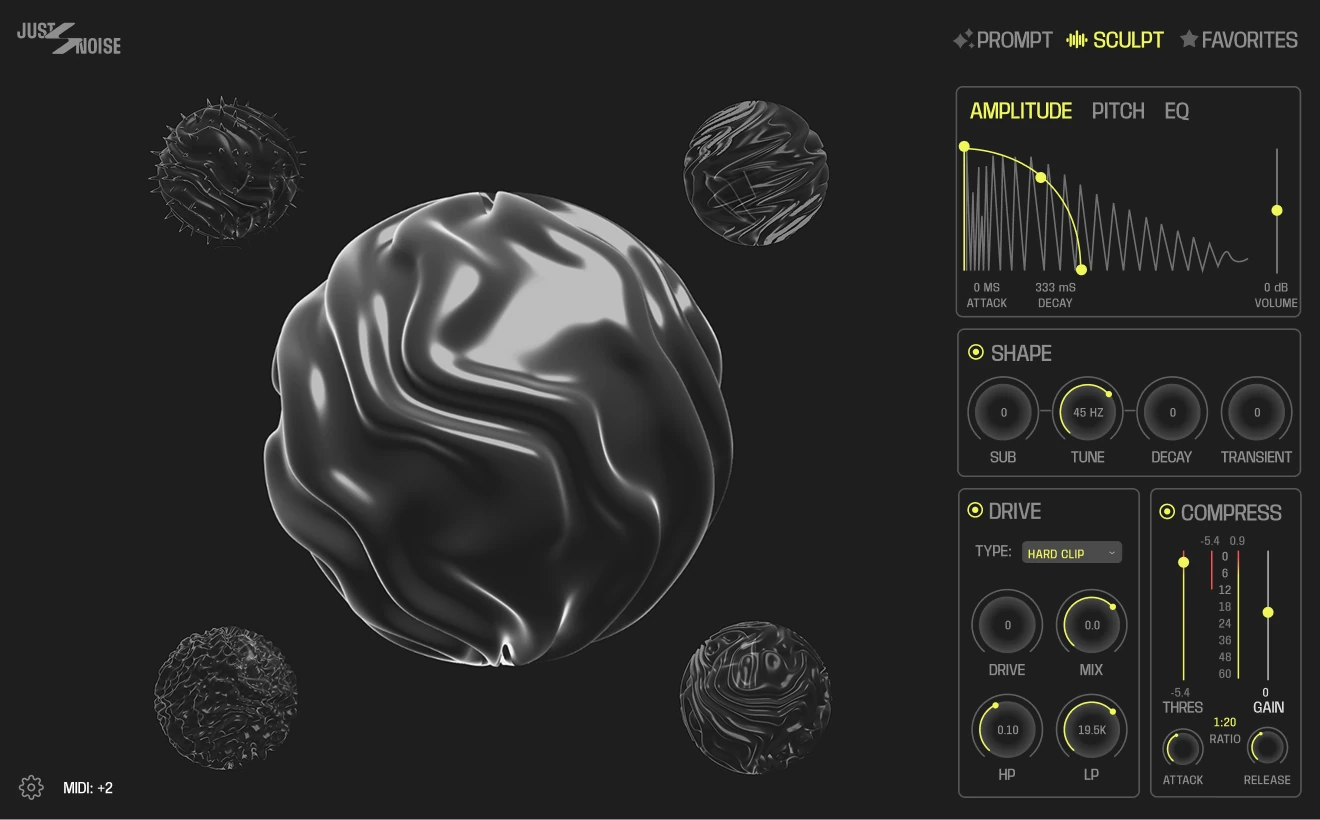
- Volume amplitude envelope
- Pitch envelope
- EQ
Sub bass and transient shaper
Compressor & Overdrive
- Volume amplitude envelope
- Pitch envelope
- EQ
Sub bass and transient shaper
Compressor & Overdrive
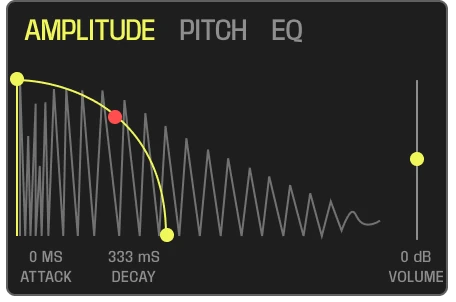
General amplitude envelope. Set the Decay time with a variable slope for your kick here, or adjust the volume.
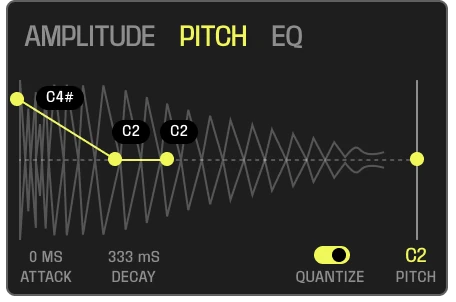
Pitch envelope. Add punchy attack or bass glides here.
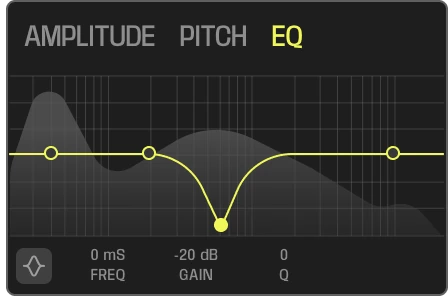
Sculpt your sound further with parametric EQ.
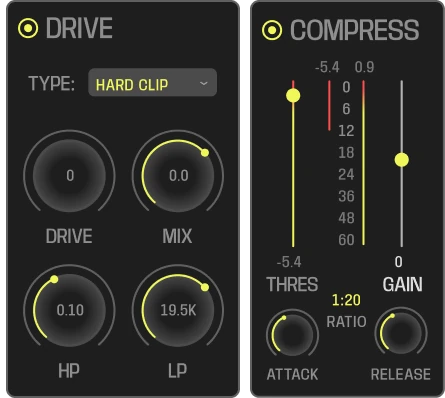
Apply final compression and saturate your kick with Overdrive. There are 7 types of overdrive algorithms available.
Favorites
In this section, you can find all your favorited samples organized in a library. You can also access your library through the web browser.
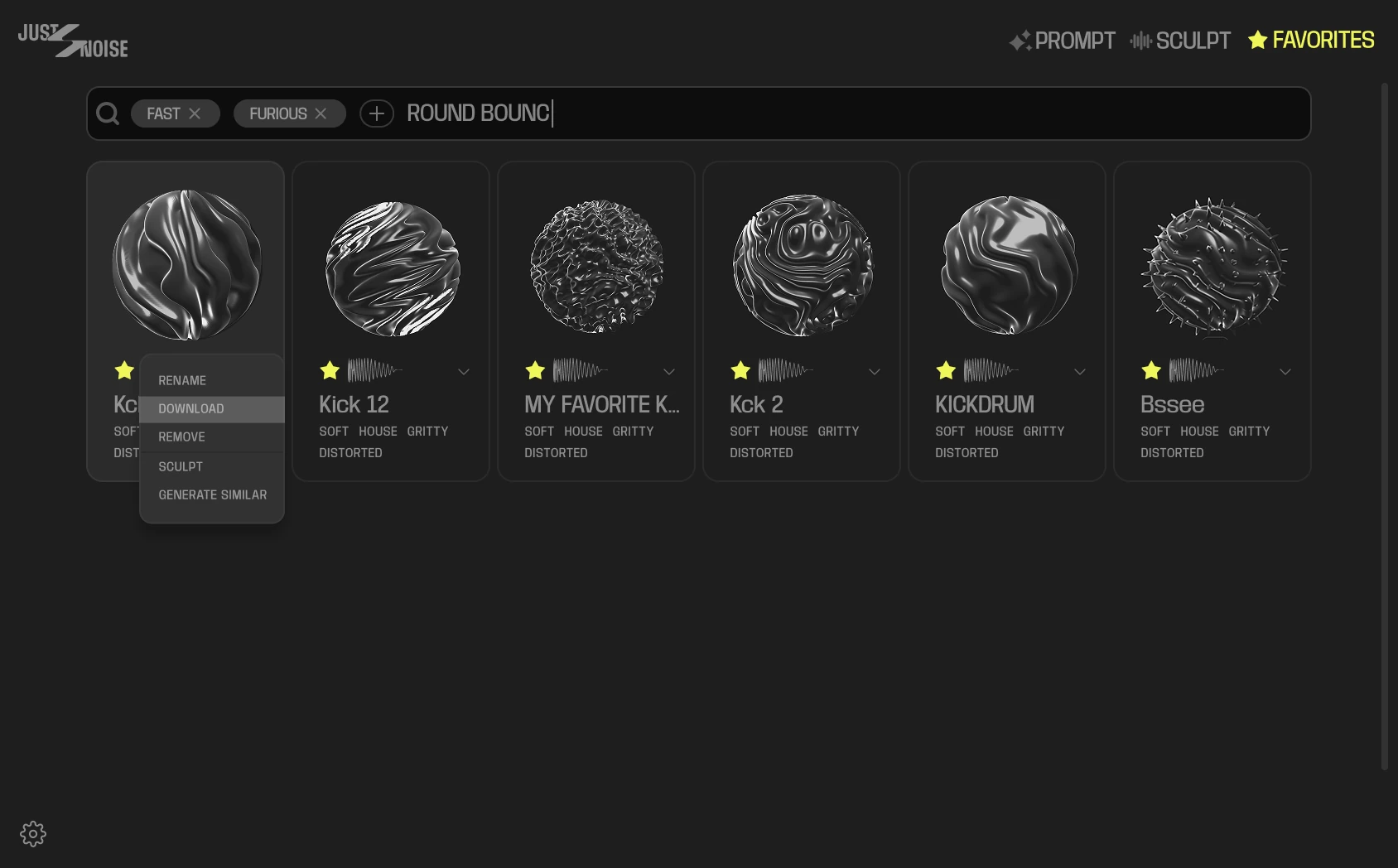
Use quick search to filter your samples by tags
Press to remove the sample from your library
Select a sample’s options here.
Select SCULPT to edit or apply new DSP effects to this sample.
Select GENERATE SIMILAR to take another round of generations with the same prompts.
Use quick search to filter your samples by tags
Press to remove the sample from your library
Select a sample’s options here.
Select SCULPT to edit or apply new DSP effects to this sample.
Select GENERATE SIMILAR to take another round of generations with the same prompts.
Exporting
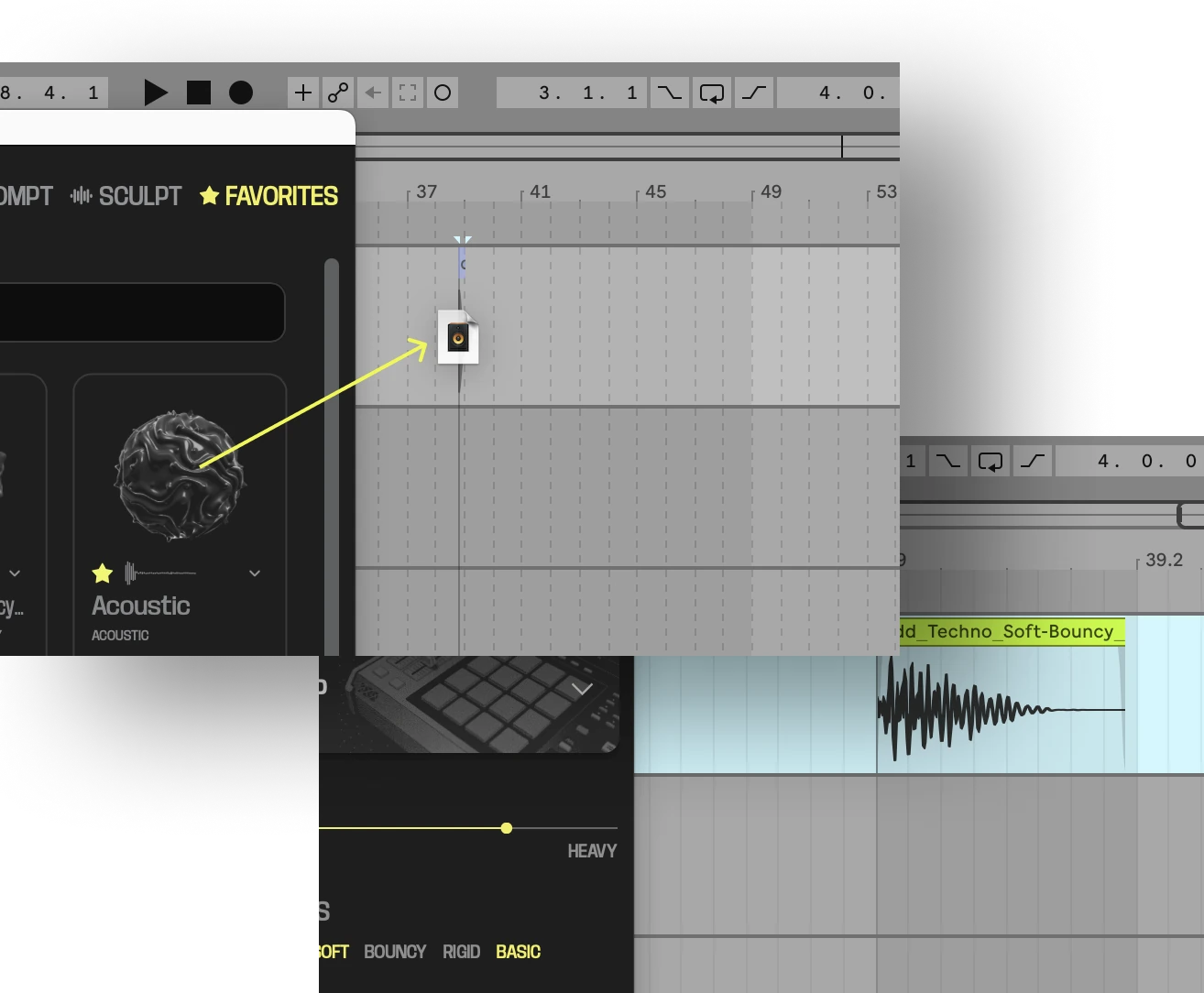
Drag & drop your samples directly into the DAW or into your local browser. Just drag a sphere in any view into the timeline.
Drag & drop your samples directly into the DAW or into your local browser. Just drag a sphere in any view into the timeline.
Settings
Your account, storage, and MIDI settings are here.
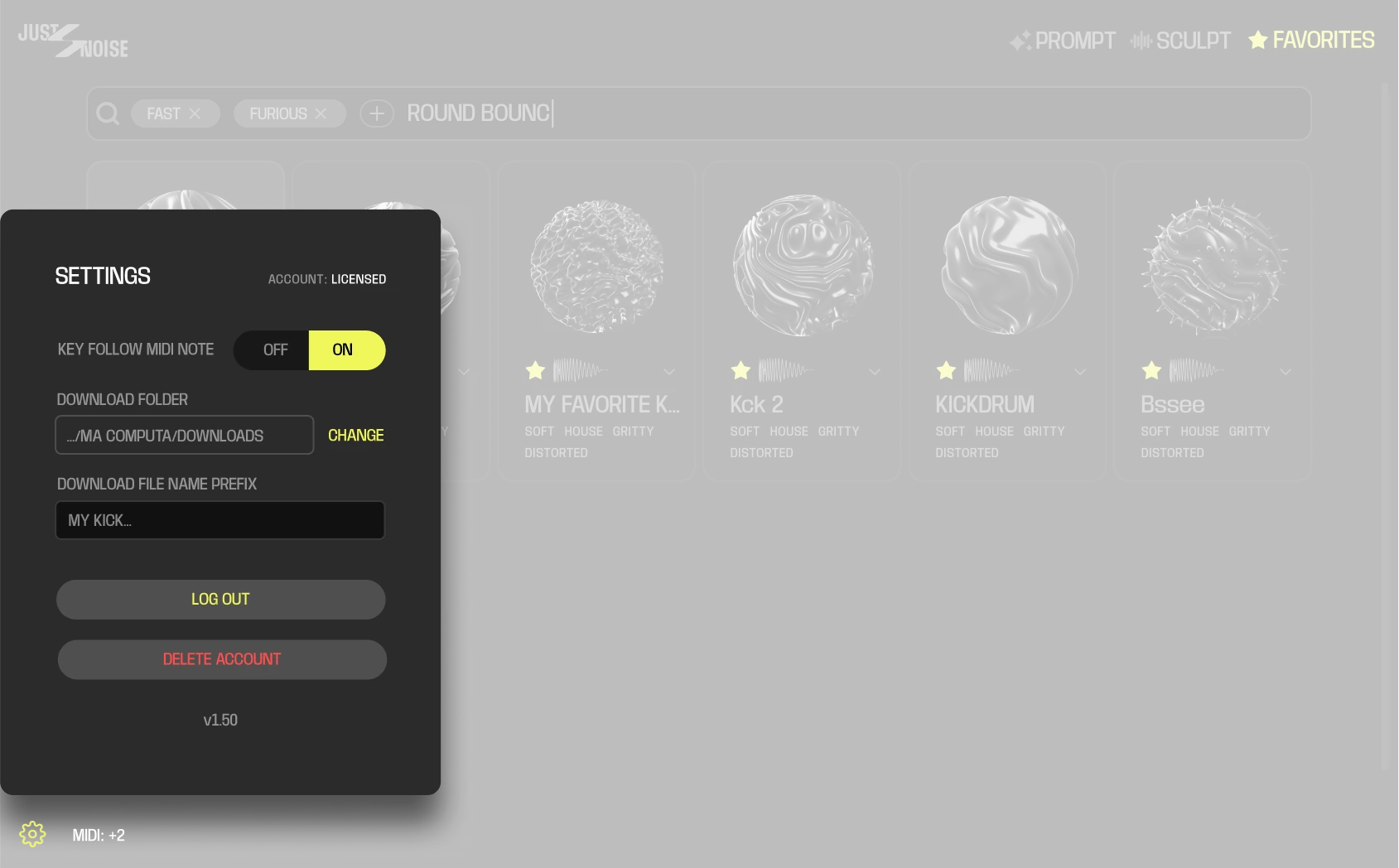
Toggle MIDI pitch responsiveness ON/OFF.
When ON – your MIDI notes WILL change the playback pitch.
When OFF – your MIDI notes will NOT change the playback pitch.MIDI indicator. Shows the incoming MIDI note’s offset from the base note, C1.
Press to open the settings menu
Toggle MIDI pitch responsiveness ON/OFF.
When ON – your MIDI notes WILL change the playback pitch.
When OFF – your MIDI notes will NOT change the playback pitch.MIDI indicator. Shows the incoming MIDI note’s offset from the base note, C1.
Press to open the settings menu